
Modern digital software provides you with a collate printing setting that can be found in your printer’s digital control panel connected to your computer or in the software from which you are printing, such as Adobe Acrobat or Microsoft Word. You only need collate printing when you want to print multiple copies of a multi-page document.
For example, if you have a 10-page document and want to print it five times, the copies will be printed one complete set at a time in the correct order: pages 1 to 10, then pages 1 to 10 again, and so on until all five copies are printed. In other words, if you need five copies, each copy will be printed in the proper sequence.
In this blog, I will use my printing experience to explain in detail what collate printing means.
Collate Definition
Collate means arranging data or items in an ordered and sequential form. Some common synonyms of collate are compile, arrange, and combine.
What Does Collate Printing Mean?
Collate printing is a printer setting that helps you print a multiple-page document in the correct order. First, all the pages of one copy are printed in sequence from A to Z. Then, if you need another copy, the printer prints the entire document again in the same A to Z order.
This is a collate definition in printing. Let’s learn with examples what does collate copies mean. Collated printing allows you to print multiple copies of a document in the correct order, whether it has 5 pages or 100 pages. Each copy is printed in a complete and properly arranged sequence, so you don’t have to worry about the pages getting mixed up. You can easily bind the pages together to create a complete document. Whether you’re printing study notes, office data, reports, or other important documents and packaging, such as soap boxes, collated printing helps you print large documents quickly with minimal effort and without any page misarrangement.
How do Collate Printers Work?
Do you want to know what collation means when printing? If so, stay tuned with us.
Whenever you set a collate printer to print multiple copies of a document, for example, pages 1, 2, 3, 4, and 5, and select 3 copies, the printer arranges and prints the pages in the order 1, 2, 3, 4, 5 three times. This process is called collating in printing.
During this process, the pages of each collated copy are arranged as follows:
- First Collate Copy: Page 1, Page 2, Page 3, Page 4, Page 5
- Second: Page 1, Page 2, Page 3, Page 4, Page 5
- And Third: Page 1, Page 2, Page 3, Page 4, Page 5
Why Should We Choose Collate Printing?
Collated printing is the ideal choice in medical, corporate, education, and other industries if you want to reduce manual work and print as many document copies as possible in less time. Whether you run a printing shop near a college or university, or work in an office as a printer operator or office assistant, you can print multiple-page documents repeatedly in the correct order and provide them to students or prepare office reports efficiently.
With collated printing, you don’t have to rearrange each page after printing, unlike uncollated printing, where you must manually organize the pages before creating complete document sets.
Collated printing is also used to print custom boxes and mylar bags in the packaging industry.
Don’t Use Collate in These Cases
Here I will use my printing experience to tell you when you should not use collate printing. Here are some cases, such as:
- When printing the page, the order does not matter, such as when printing identical pages.
- When you are printing handouts and worksheets for distribution.
- When you are printing flyers or forms in bulk, collate printing can slow you down.
- When you want to print pages separately and arrange them manually for a specific purpose.
- When you have any manual method available that can arrange copies faster and more conveniently than a collate printer.
How to Collate in Printing – Quick Guide Edition
Let’s learn how to collate in printing in a professional way, whether you are using various devices or different software applications. But ensure your document preview displays pages in sequence before sending the command for printing.
When the computer is connected to the printer:
- Connect the Computer Via USB cable, Wi-Fi, or Network with Your Printer.
- Open the Document and Press Print.
- In the Print Setting Look for the Collate Option and select it Before Starting the Printing.
Adobe Acrobat
- Open your PDF file in Adobe Acrobat
- Click on Print
- Check the Print Dialog Box to Enable the Collate
Microsoft Word
- Open the Document in Microsoft Word
- Go to File> Print
- Choose the Number of Copies
- Make Sure the Collate Checkbox is Selected
- Then Start the Printing
Collate In Printer
If you are using a collate function printer that allows collation from its printer driver settings, you can follow these steps:
- Open Printer Properties to find the Layout and Finishing Tab
- Enable Collate before printing
Mobile or Wireless Printing Apps
- Open Your Document in a Mobile App
- Select the Collate Option
- Tap Print
Collated vs Uncollated Printing
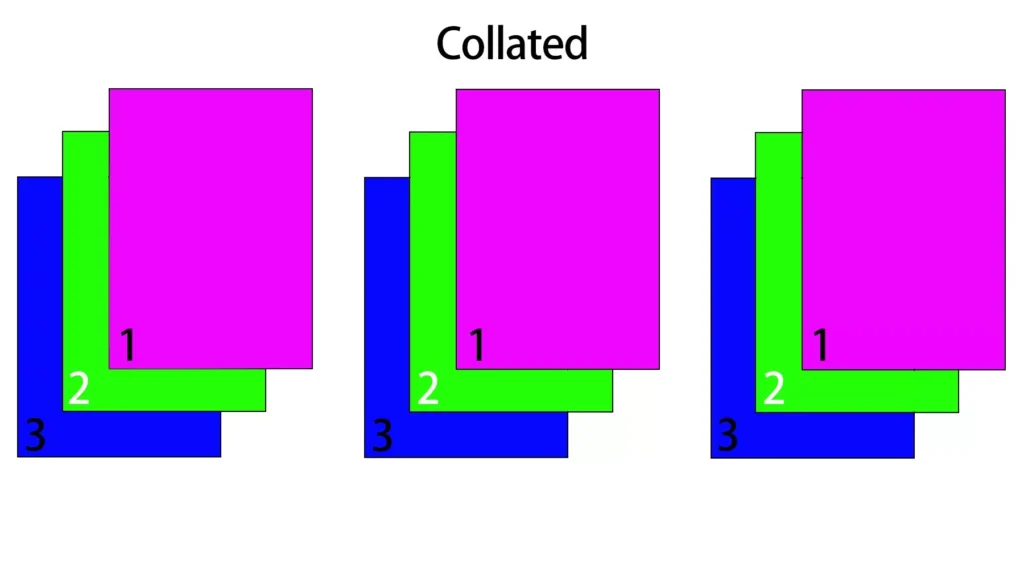
Let’s learn in detail with the help of tables about collate vs not collate meaning and their uses to help you choose the right option according to your printing needs.
| Feature | Collate Printing | Uncollate Printing |
| Page Order | Prints complete sets in sequence (1,2,3,4,5 → 1,2,3,4,5) | Prints the same pages together (1,1,1,1,1 → 2,2,2,2,2…) |
| Best Use | Reports, books, multi-page documents | Flyers, forms, worksheets |
| Manual Work | No manual sorting required | Manual arrangement needed |
| Time Efficiency | Saves time for ready-to-use sets | Faster for bulk identical pages |
| Convenience | Easy for binding and distribution | Useful for mass page duplication |
| Printing Style | Set-by-set printing | Page-by-page printing |
Does Collate Still Matter When Printing Double-Sided?
Collate printing purpose is to print your document copies in proper arrangement. Whether you are doing single-sided printing or double-sided printing, you can set this option in the printer settings.
During collate copies printing, if you want to print a 5-page document in double-sided mode 3 times, then in collate printing, first your page 1 will be printed on both sides, then page 2, 3, 4, and 5 will also be printed on both sides. In this way, you get a proper arrangement.
In this way, you will get 3 documents in an arranged form; each one will be a complete 1–5-page set.
Troubleshooting Collation Issues
Here is the easy guide for all to troubleshoot the collation issues in the printing process.
| Problem | Problem | Solution |
| Paper jam during collated printing | The printer stops because paper gets stuck while printing a large collated document | Do not put a paper bundle in the tray, align the paper properly, and use printable paper to avoid jams |
| Poor print quality | Print becomes faded or unclear during a long collated print job | Test the print, check the ink, and print large documents in smaller batches |
| Wrong page order or mistakes | Pages come out in the incorrect order or contain errors | Double-check the page sequence and proofread the document before printing |
| Print job fails completely | When a document does not print or gets stuck in the queue | Clear print queue, restart print spooler, update collate printer drivers, and try again |
| Printer memory issue | Large collated copies may not print due to memory overload | Restart the printer, clear the memory by unplugging for 10 minutes, or split the document into smaller parts |
| The printer stops mid-job | Printing suddenly pauses or stops halfway | Check the connection, ensure a stable power supply, and resume or restart the print job |
| Missing or skipped pages | Some pages do not print in the collated set | Check file integrity, resend the print job, and ensure no pages are corrupted |
| Slow printing speed | Collated printing takes longer than expected | Reduce print quality slightly or print in smaller batches |
| Paper misalignment | Pages print but look shifted or uneven | Adjust paper guides in the tray and ensure the correct paper size setting |
| Software error | The printer behaves incorrectly due to a software glitch | Restart the computer, reinstall the printer driver, and update printing software |
What are the Benefits of Collate Printing?
There are many benefits to choosing collate printing, such as:
Time Saving
Whatever copies come out printed from a collate printer come in perfect order. Because of this, you do not need to arrange them manually; you can directly bind or staple them. This way, a lot of your time can be saved.
Accuracy in Document Arrangement
As you know, in collated printing, your document’s pages are printed in proper sequence, so there is no chance of any single page getting misplaced. This way, you can print and bind multiple documents in the correct order without any pages getting mixed up.
Professionalism
When you print documents quickly and in an organized manner, whether in an office, a hospital, or an educational institution, your boss or your customers will appreciate your work. This also projects your professional image, because everyone appreciates work done in an organized way.
Conclusion
Collate printing holds a lot of importance in meeting the printing needs of various industries, whether it is an educational institution, a corporate organization, a hospital, or custom packaging printing. Collate printers print the various pages of your document in the proper order. If you need to print a document five times, it will print the pages of that document in the proper order five times; first, one document will be ready, then the second, and this process will continue until all five documents are done.
However, you should ensure that there is proper ink available inside your printer, the paper is correctly arranged and placed inside the tray, and your document is readable as well as properly arranged.
If you need any kind of printing help or if you are looking for a packaging company for custom boxes printing, contact our customer support right now at the email provided.